Your account
Add a photo, change your name, phone, email or password, reset a forgotten password, and choose which emails you get.
- For owners
What it's for
Your account is the email and password you use to sign in to the dashboard and to the owner and manager app. Each person has their own account. Cashiers don't need one: they use their PIN at the till.
Before you start
You need to be signed in. To change your email or password, you also need your current password.
Steps
- In the dashboard, open the menu under your name at the top right and choose Your Account.
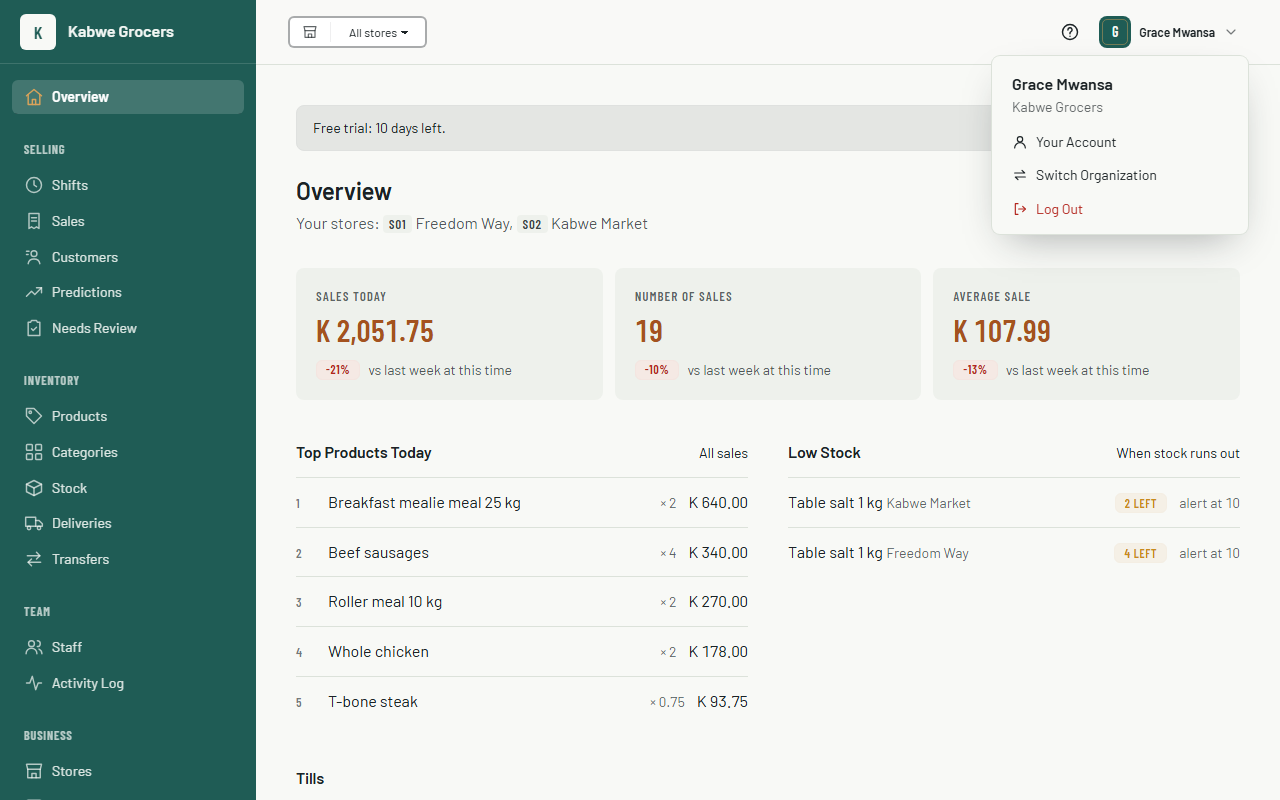
- To add a photo, choose Add a photo under your name and pick a picture. It shows in the top bar and in the app. A PNG, JPEG or WebP up to 1 MB works. Choose Change photo to replace it or Remove to go back to your initial. A photo is optional.
- To change your name or phone number, edit Your details and choose Save details.
- To change your email, type the New email and your Current password, then choose Change email. We email a link to the new address. Your email changes only when you open that link, within 24 hours. We also tell your old address, in case it wasn't you.
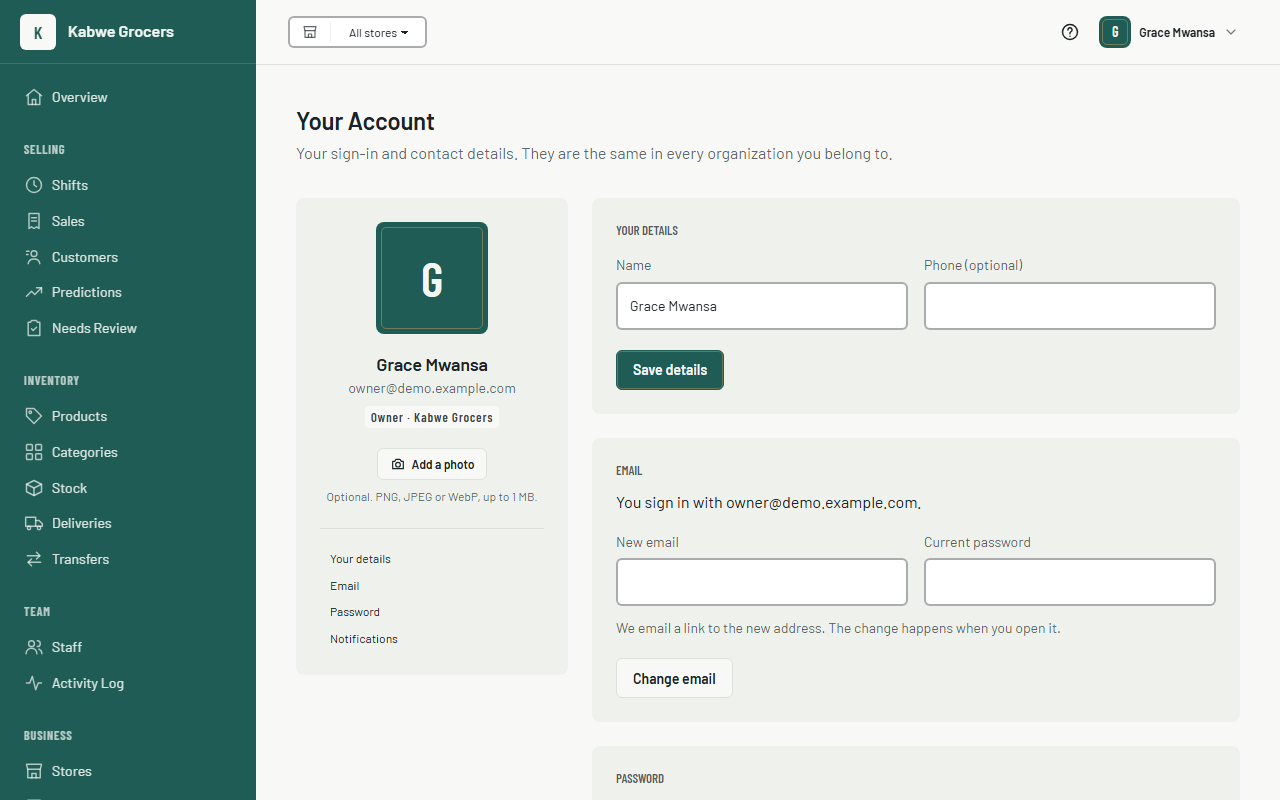
- To change your password, type your Current password and the New password twice (at least 10 characters), then choose Change password. You stay signed in here. Every other browser and phone is signed out.
- Owners and managers can turn Email me stock alerts and a daily summary on or off under Notifications. See Stock alerts and the daily summary.
In the app
In the owner and manager app, open the menu and choose Your Account. You can change the same details there, and add a photo from your phone's gallery.
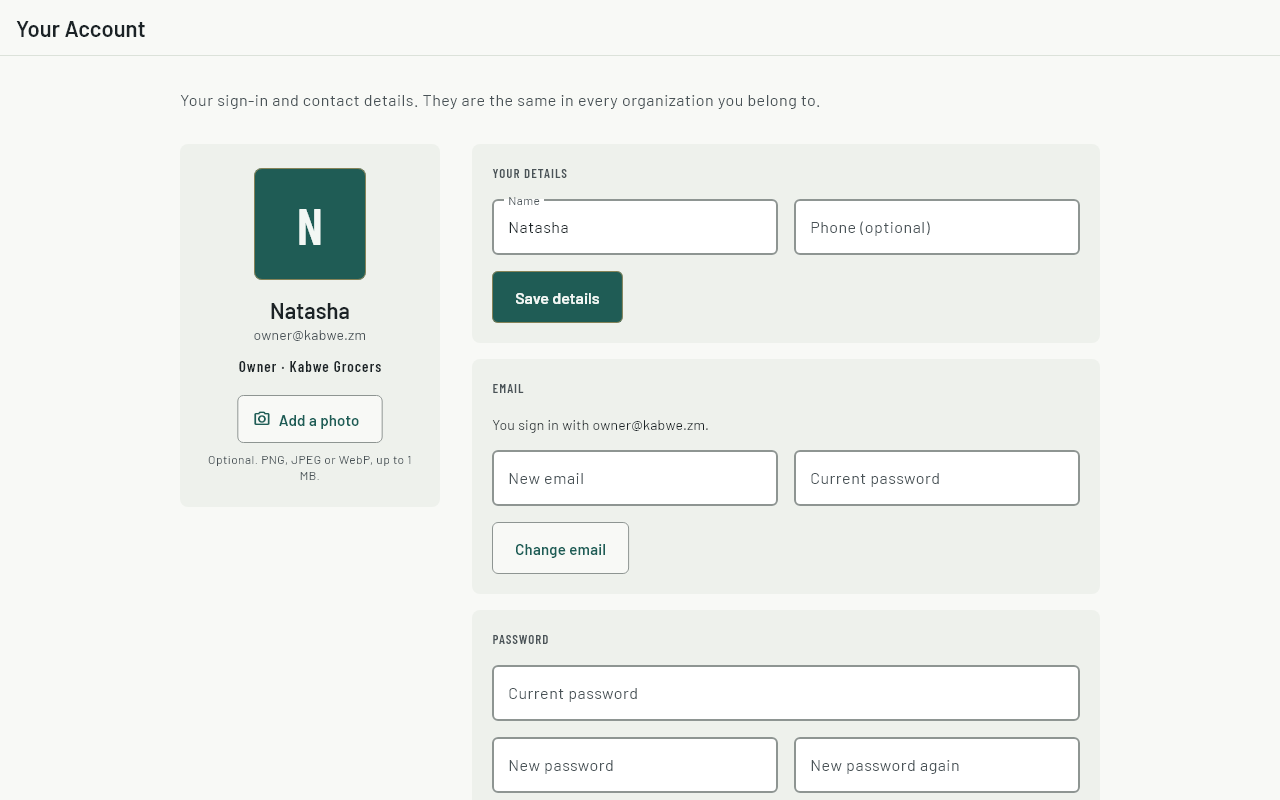
See The owner and manager app.
Forgot your password?
- On the log in page, or the app's sign-in screen, choose Forgot password?.
- Type the email you sign in with and choose Send reset link.
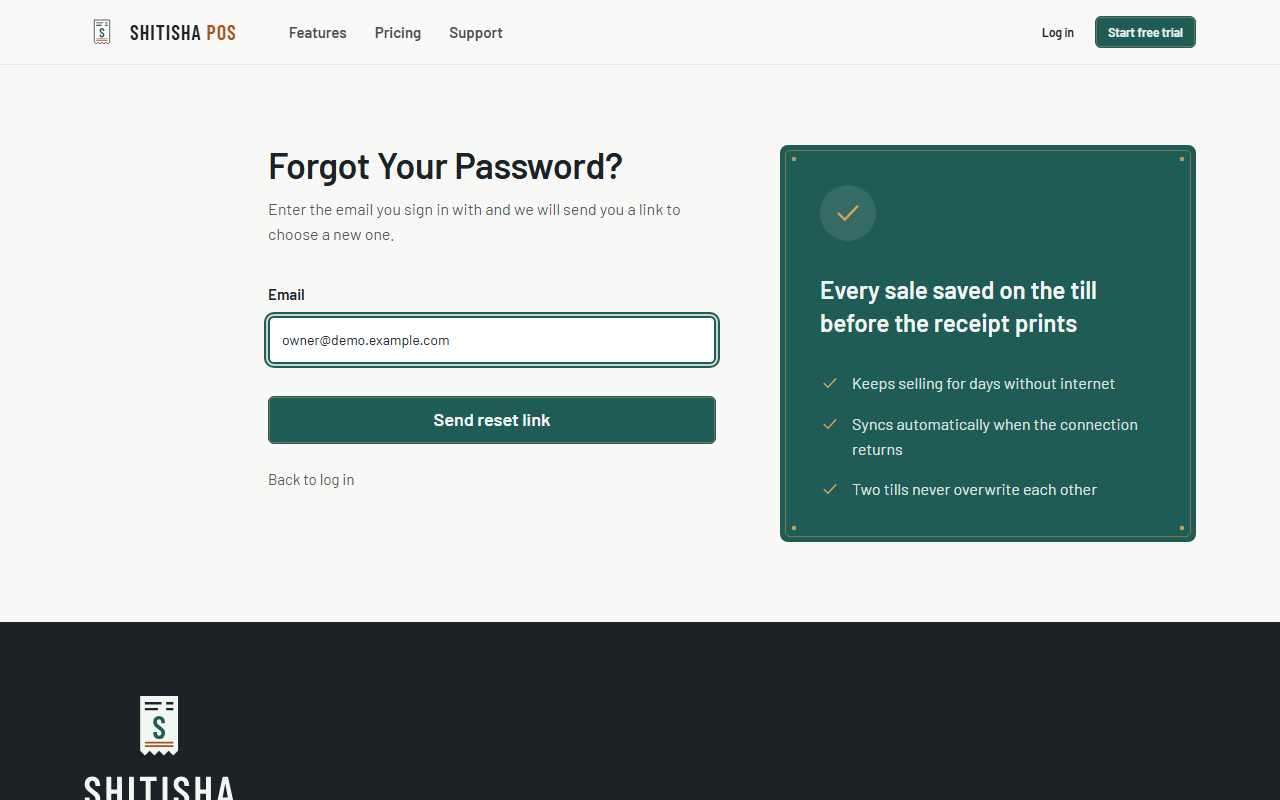
- Open the email and choose the link. It works once, for 1 hour.
- Type a new password twice and choose Save password, then log in. You're signed out everywhere else.
Common questions
The reset email didn't arrive.
Check your spam folder and that you typed the email you sign in with. For your security we show the same message whether or not an account uses that email.
My photo won't upload.
It must be a PNG, JPEG or WebP picture of 1 MB or less. On a computer, save a smaller copy first; the app shrinks photos for you.
The confirm link for my new email has expired.
Ask for the change again on Your Account. Until you confirm, keep signing in with your old email.
Someone else changed my email or password.
Reset your password straight away from the log in page, then contact us.