VAT and scale settings
Tell us whether you're VAT registered, your VAT number, and which barcodes your scale prints.
- For owners
On this page
What it's for
These settings control how receipts show VAT and how tills read the labels printed by your weighing scale. They apply to every store.
Before you start
Only owners can change settings. Have your TPIN and your scale's manual handy.
Steps
- In the dashboard, choose Settings.
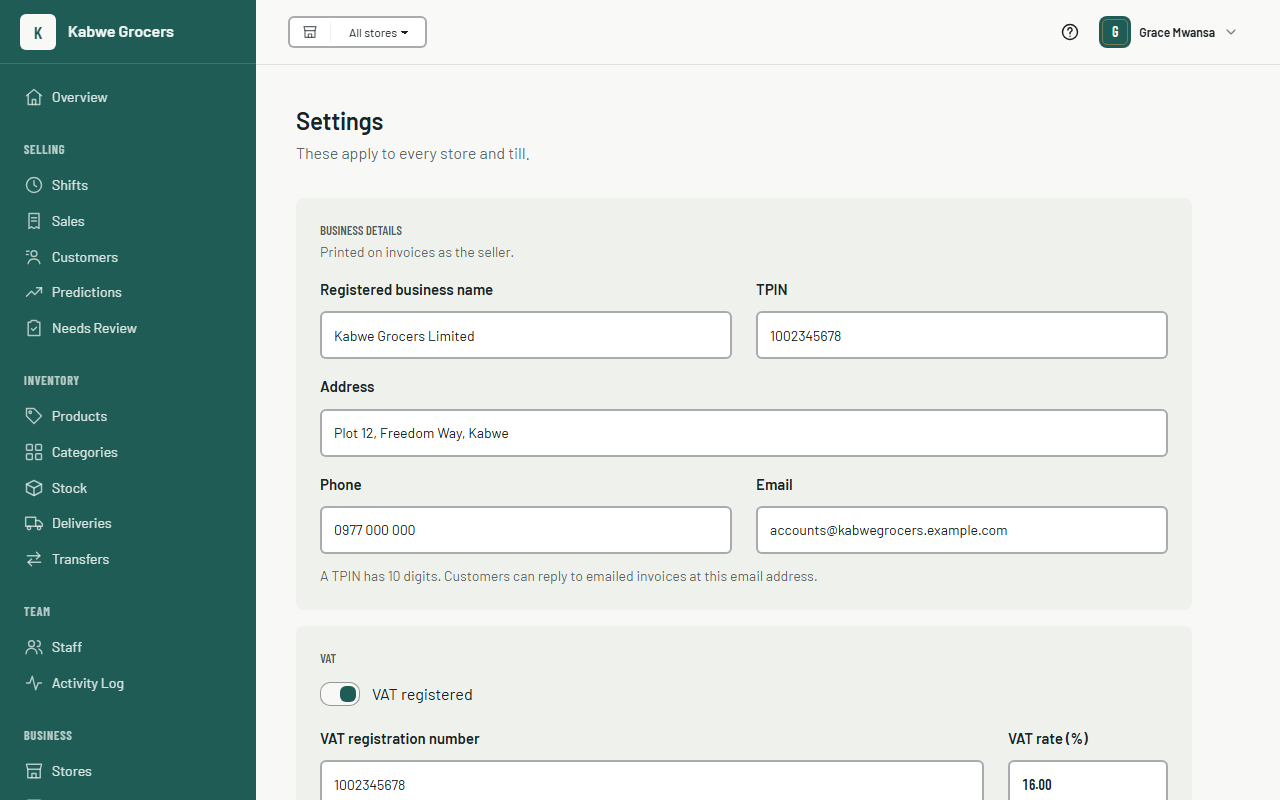
- Under Business details, enter your registered business name, TPIN (10 digits), address, phone and email. These print on your invoices as the seller. See Invoices.
- Tick VAT registered if you charge VAT, and enter your VAT registration number.
- Check the VAT rate. It's 16% by default. Your prices already include VAT; the receipt shows the VAT part.
- Under Customers on sales, choose Optional or Required. When it's required, tills ask for a customer before taking payment. See Customers.
- Under Scale labels, enter the prefixes your scale uses for weight labels and for price labels. The defaults are 21 for weight and 22 for price.
- Choose Save. Tills use the new settings after their next sync.
Common questions
It says "Scale prefixes must be numbers from 20 to 29".
Scale labels always start with 20 to 29. Separate more than one with commas, such as 21, 23.
Which products are zero-rated or exempt?
Set the Tax on each product. Zero-rated and exempt items carry no VAT on the receipt.
I'm not VAT registered.
Untick VAT registered. Receipts then show no VAT lines.