The admin app
See takings, low stock, flagged sales and cash differences from your phone or PC.
- For owners
On this page
What it's for
The same Shitisha POS app your tills run has an admin mode, for owners and managers. Sign in with your dashboard email and password to see, for any of your stores:
- today's, this week's or this month's sales, compared with the period before;
- products that are low on stock or will run out within 7 days;
- sales and refunds waiting in Needs Review, which you can mark as checked;
- shifts closed with a cash difference.
It works on Android phones and tablets and on Windows. It's coming to iPhone and iPad. Cashiers don't use this mode: they sign in at the till with their PIN.
Before you start
- Install the app. See Installing the till.
- You need an owner or manager account on the dashboard. Managers see the stores they're linked to.
Steps
- Open the app. A new device opens on Admin Sign In. On a till, choose Admin? Sign in at the top of the PIN screen.
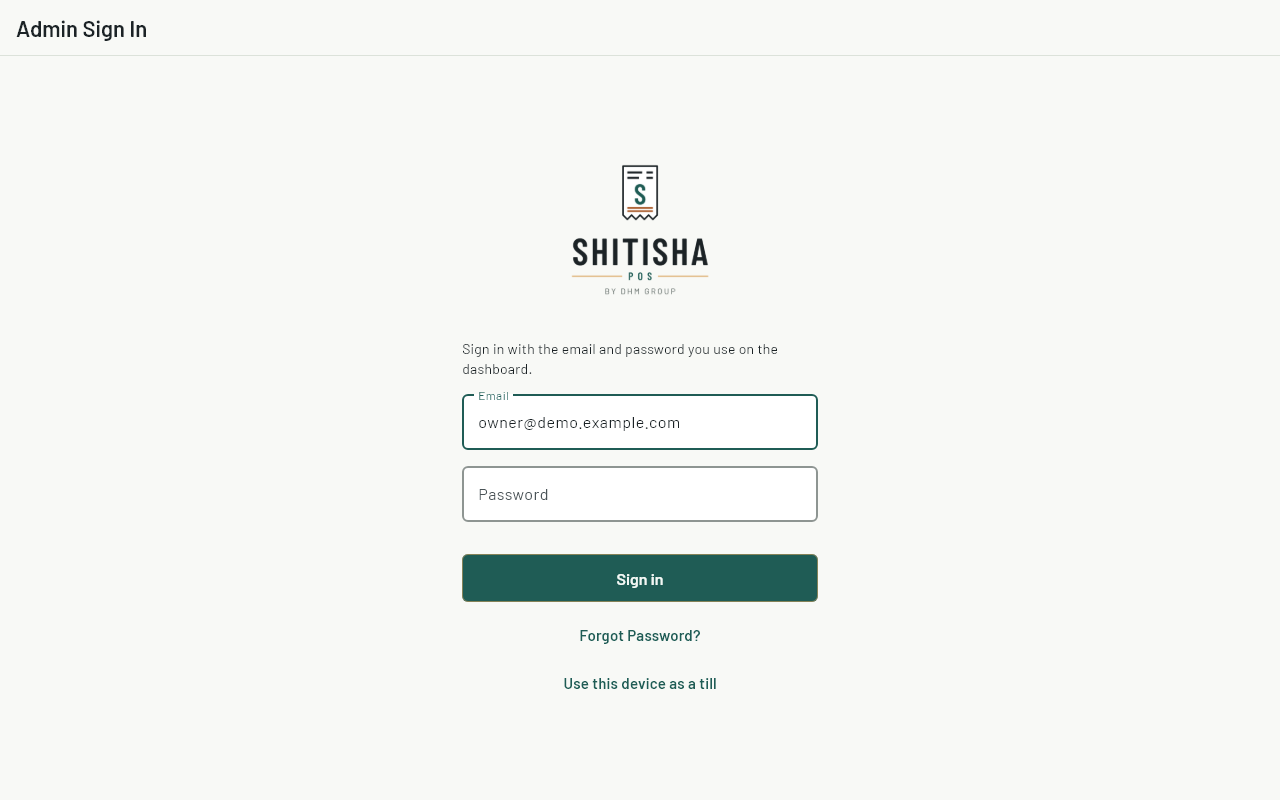
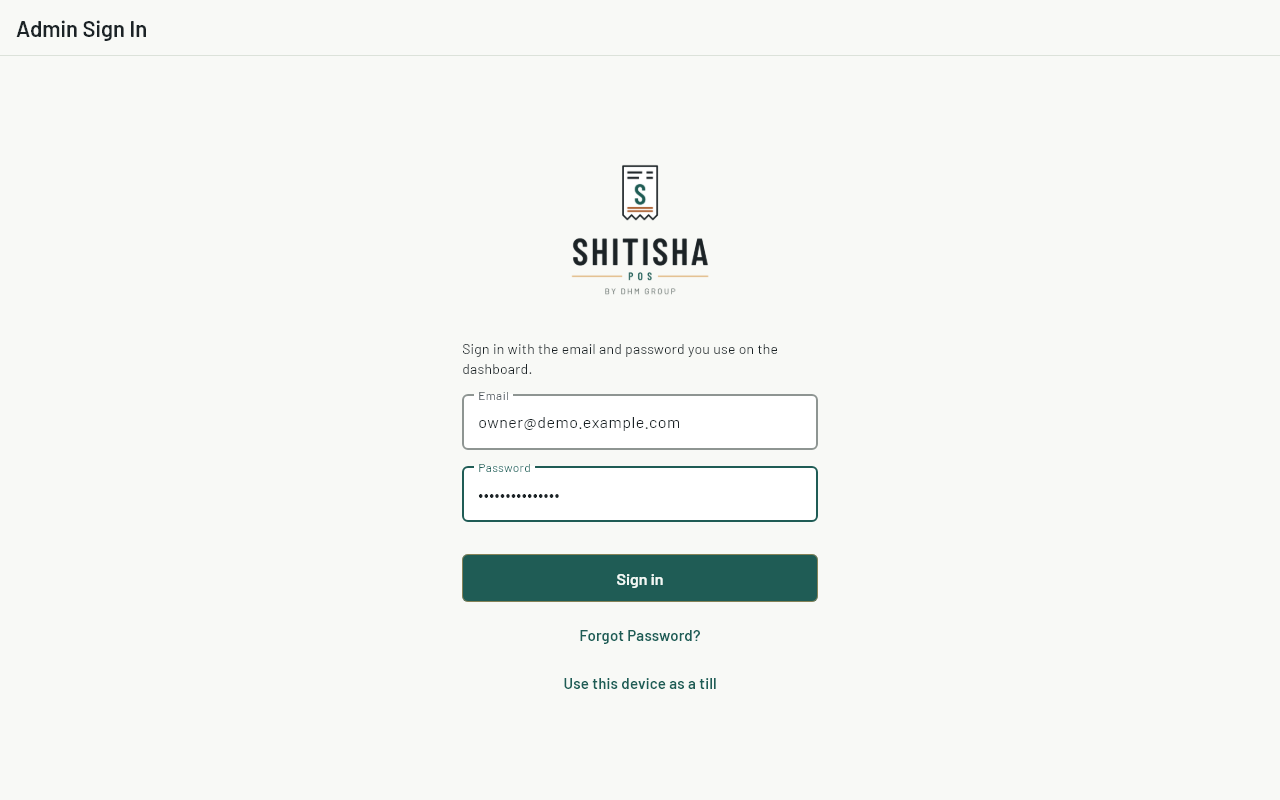
- Type your email and password and choose Sign in. If you belong to more than one business, choose which one.
- The admin app is grouped like the dashboard: Overview, Selling, Inventory and Team. On a phone the groups are along the bottom; tap one to see its screens. On a tablet or PC the groups and their screens are down the left side, in the same green as the dashboard, and lists show the item you pick beside them.

- Today (under Overview) shows sales, the number of sales, the average sale and refunds, with the change on the period before. Switch between Day, Week and Month. Week and month also show each day's sales.
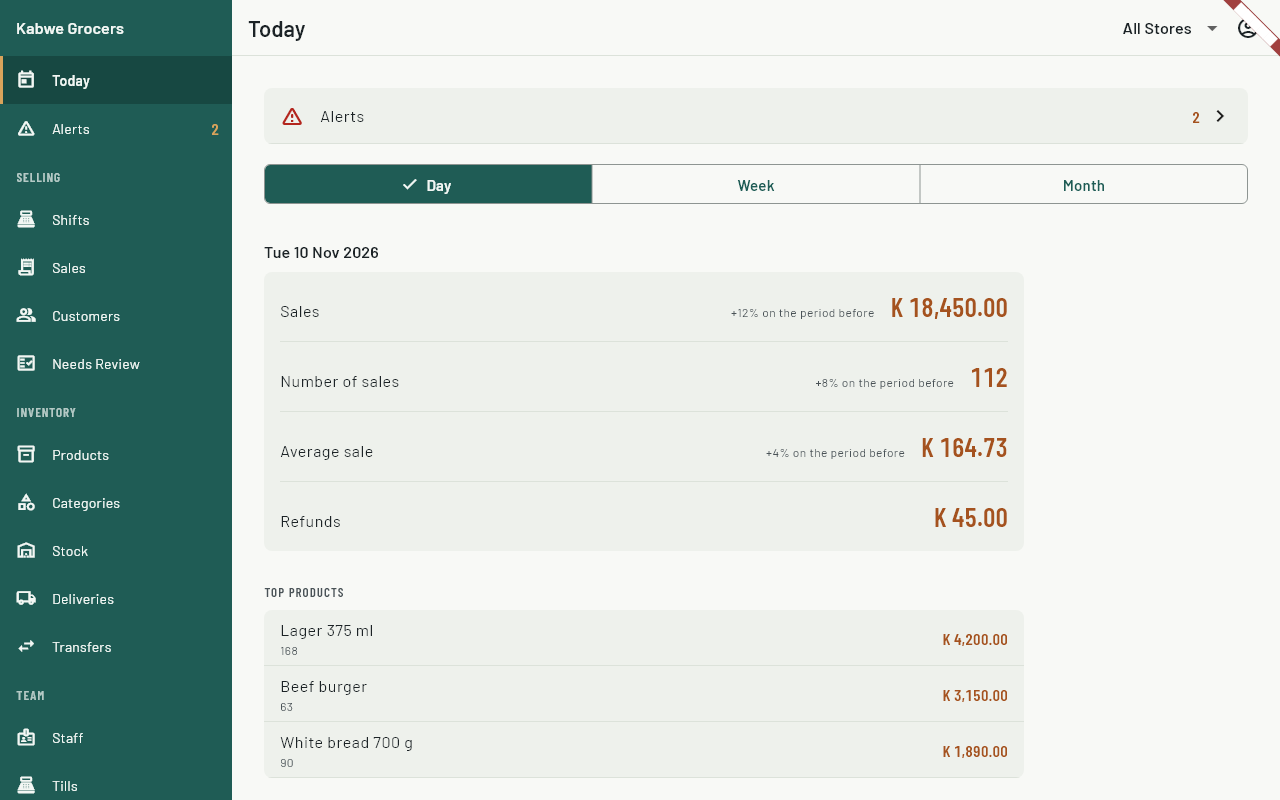
- Alerts (tap the Alerts line at the top of Today) lists products at or below their low-stock alert and products expected to run out within 7 days. The number on Overview is how many there are. Pull down to refresh.
- Needs Review (under Selling) lists flagged sales and refunds. Tap one, add a note if you like, and choose Mark as checked. It's the same list as Needs Review on the dashboard. See Needs review.
- Shifts (under Selling) lists the shifts closed on a day, with the biggest cash difference first. Use the arrows to change the day.
- If you have more than one store, pick a store at the top, or All Stores.
- To leave, open the account menu at the top right and choose Sign Out.
Common questions
Do I need to stay signed in on a till?
No. Owner mode has its own sign-in. It doesn't change who's selling on the till, and a cashier can't open it without your password.
It says it can't reach the server.
Owner mode needs the internet; it shows live figures from the server. Check the connection and choose Try again.
Will I get a notification on my phone?
Not yet. For now you get emails. See Stock alerts and the daily summary.
I changed my password and the app signed me out.
That's on purpose: a password change signs out every other device. Sign in again with the new password.