Setting up a till
Connect an Android tablet or Windows PC to one of your stores.
- For owners
- For managers
On this page
What it's for
Each till belongs to one store. Setting it up once connects it to your business. After that, cashiers log in with their PINs and the till keeps selling even when the internet drops.
Before you start
- An admin account for the store: the owner or a manager. Cashiers can't set up tills.
- The till connected to the internet for the setup step.
- A free till place on your plan. Your plan page on the dashboard shows how many tills you have and how many it allows.
Steps
- Install and open the Shitisha POS app. It opens on Admin sign in; there's no server address to type.
- Choose Use this device as a till.
- Enter your email and password and choose Next.
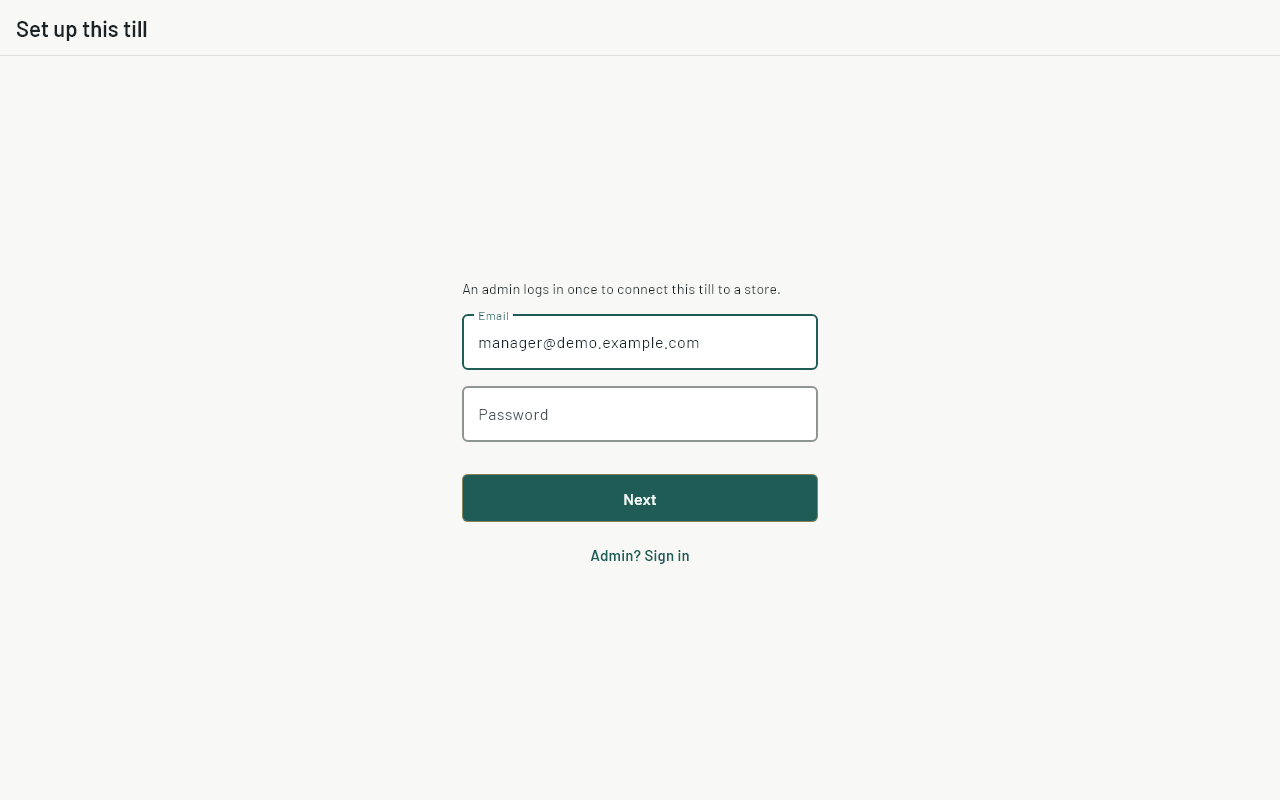
- If you work for more than one business, choose the one this till belongs to.
- Choose the store and give the till a name, such as
Front counter. Choose Set up till.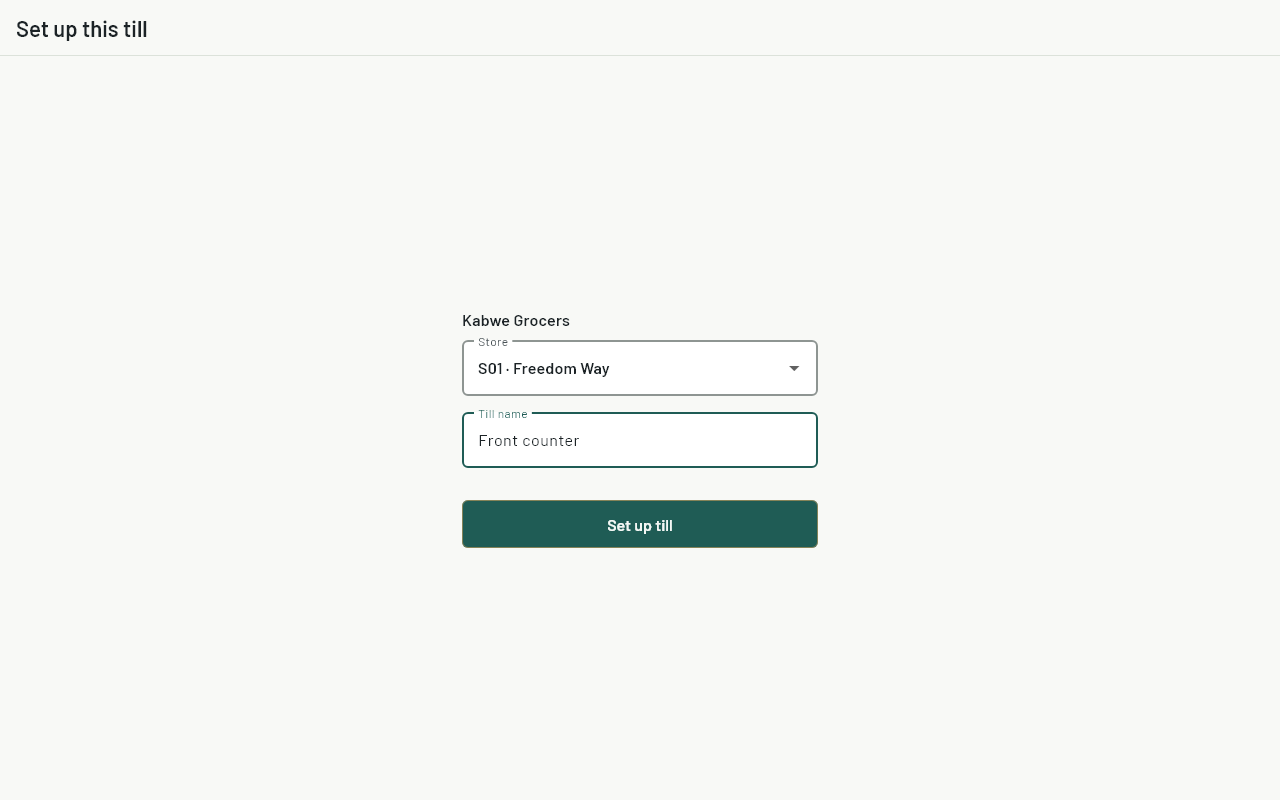
- The till shows Registered as S01-T01: your store code and the till's own code. Every receipt from this till starts with it. Choose Continue.
- Cashiers can now log in with their PINs.
Windows PCs
- Install the app from the installer your provider gives you. It runs on Windows 10 and 11.
- The till fills the whole screen and opens by itself when someone signs in to Windows, so it's ready when the PC is switched on. Open it once after installing to turn this on.
- Press F11 to put the till in a normal window (to reach another program), and F11 again to go back to full screen.
- To stop it opening at sign-in, go to Windows Settings → Apps → Startup and turn off Shitisha POS.
- For a PC that only runs the till, set Windows to sign in automatically, so it opens straight into the till after a power cut.
- USB barcode scanners work like a keyboard and need no setup.
- Keep the PC from sleeping during opening hours, so sales sync as they happen.
Android tablets
- Install the app, then allow camera access if you want to scan barcodes with the camera.
- Turn off battery optimisation for the app, so it can sync in the background.
- Bluetooth scanners must be paired in Android settings first.
Checking your tills
In the dashboard, Tills lists every till with its store and when it last synced. The Overview shows the same, and warns about a till that hasn't synced for a day: check it's switched on and online.
Lost or replaced tills
In the dashboard, choose Tills, find the till and choose Revoke. Within 15 minutes it is signed out and must be set up again. Sales it made before that are kept: set it up again for the same store and any sales it hadn't sent yet are sent. A till can't move to a different store until its unsent sales have gone.
Common questions
It says "Can't reach the server".
Check the internet connection, then try again.
It says "Only an admin (an owner or manager) can set up a till".
Log in with the owner's or a manager's account. A cashier's account doesn't work for setup.
It says "Your plan allows 2 tills".
Your plan has a limit on tills, and they're all in use. On the dashboard, choose Tills and Revoke a till you no longer use, or change to a bigger plan under Billing. Then set up the till again.
I need to use another program on the till PC.
Press F11 to leave full screen, or Alt+Tab to switch programs. The till keeps running.
Do I need internet to sell?
Only for setup. After that the till sells offline and syncs when it's back online.