Discounts and removing items
Take money off one item or the whole sale, and when a manager needs to approve.
- For cashiers
- For managers
On this page
What it's for
You can give a discount on one item, on the whole sale, or both. A discount is a percent (like 10%) or an amount (like K 5.00).
Cashiers can give discounts up to a limit the owner sets. Above it, a manager approves with their PIN.
Removing an item or cancelling a sale before payment is fine, but the till records it in the owner's activity log.
Before you start
The owner sets the cashier limit in the dashboard: Settings, then Cashier discount limit. It starts at 10%. Managers and owners have no limit.
Steps
Discount one item
- In the sale, press and hold the item, then choose Discount item.
- Choose Percent or Amount, type the discount, then choose Apply. The item shows its new price, with the discount under it.
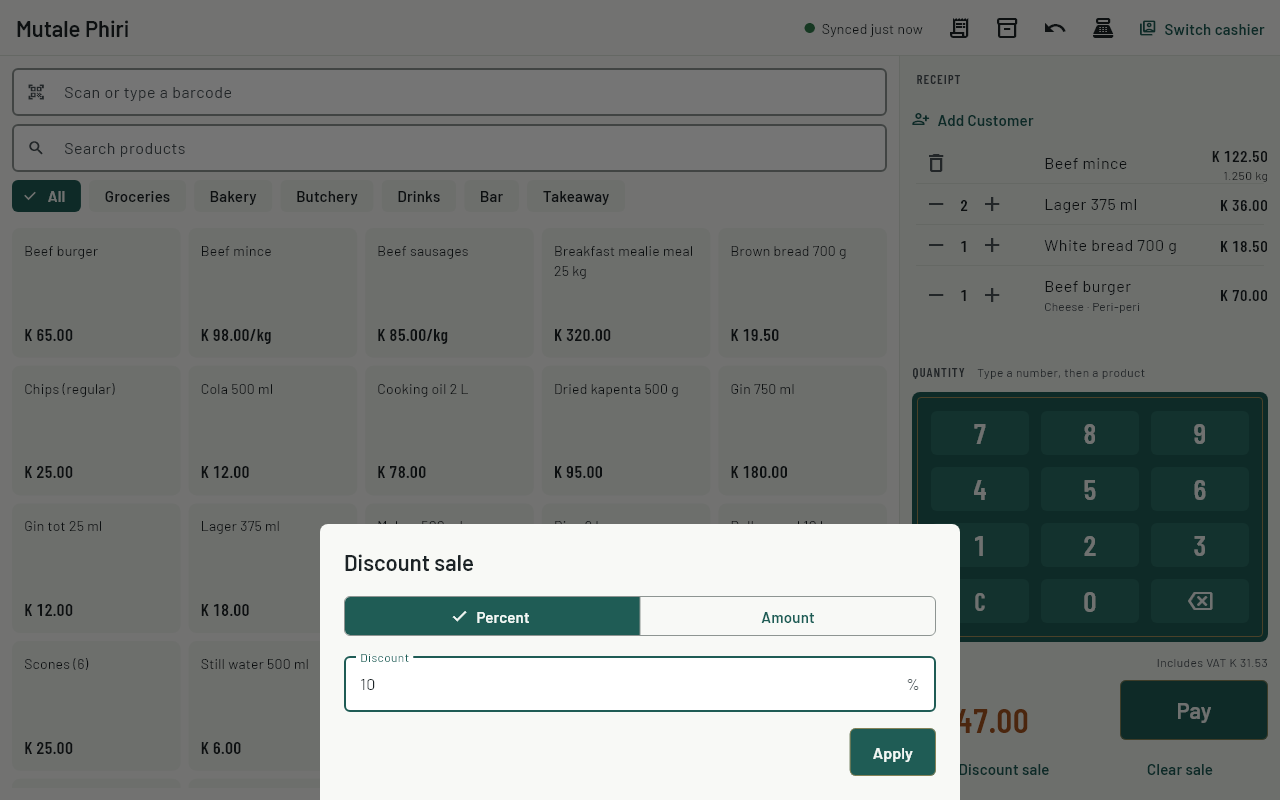
Discount the whole sale
- Under the total, choose Discount sale.
- Choose Percent or Amount, type the discount, then choose Apply. The discount is shown above the Pay button.
When a manager needs to approve
- Choose Pay. If the discounts add up to more than the cashier limit, the till asks for a manager.
- The manager chooses their name, types their PIN, then chooses Approve. The payment screen opens.
To take a discount off, open it again and choose Remove discount.
The receipt shows each item discount under the item, and the sale discount above the total.
Common questions
I removed an item by mistake.
Add it again. The removal stays in the activity log; that's expected.
I changed the discount after the manager approved.
Any change needs approval again, so the manager approves what's actually given.
Is the VAT right after a discount?
Yes. VAT is worked out on what the customer pays.
The manager isn't in the list.
Only managers of this store, and owners, can approve. Check their PIN is set in Staff on the dashboard and the till has synced.