Moving stock between stores
Send stock from one store to another, and receive it at the other end.
- For owners
- For managers
On this page
What it's for
When one store has more than it needs and another is running low, send stock across. The sending store's stock goes down as soon as you send it. The receiving store's stock goes up when someone there receives it. If less arrives than was sent, the difference is kept on the transfer, so you can follow it up.
Before you start
You need:
- your dashboard login: the owner, or a manager of the sending store
- someone at the receiving store (its manager, or the owner) to receive it
Steps
- In the dashboard, choose Transfers, then Send stock.
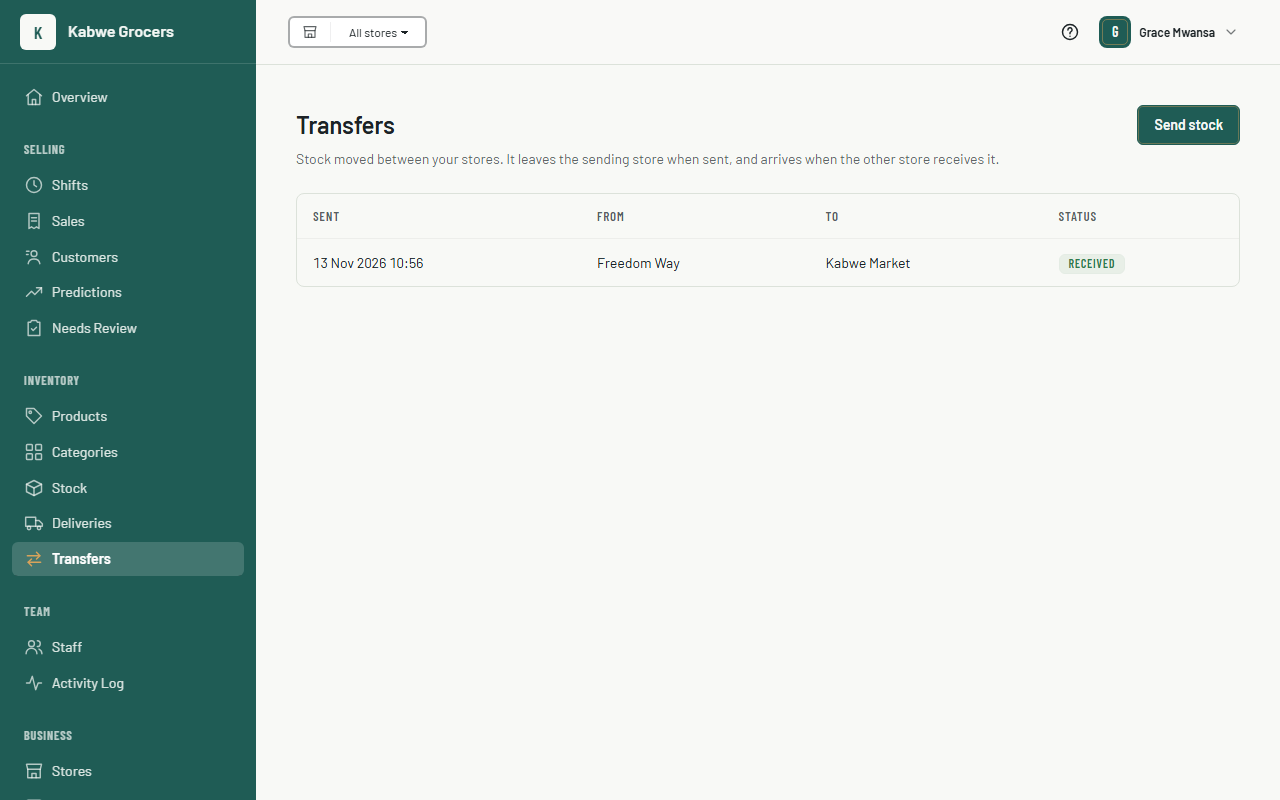
- Choose the store it's from and the store it's going to.
- On each line, choose a product and type the quantity. For products with a pack size, type packs: 2 crates, or 4.5 cases.
- Choose Send. The transfer shows as On the way.
- When the stock arrives, the receiving store opens the transfer from Transfers. Each line shows the quantity that was sent.
- If less arrived, change the Received quantity on that line. Then choose Receive into stock.
Common questions
Something was missing or broken on arrival.
Type what actually arrived. The transfer keeps both numbers and marks the line Difference. The missing stock has left the sending store and never reached the other one.
I sent the wrong quantity.
A sent transfer can't be changed or cancelled yet. Receive what arrived, then use Adjust on the Stock page with the reason Correction, if needed.
A manager can't receive a transfer.
Only the owner, or a manager of the receiving store, can receive it. Managers can send to any store.
Does the till see the transfer?
The tills see the new stock levels at their next sync.