Staff and till PINs
Add cashiers with PINs, invite managers, and choose which stores each person works in.
- For owners
- For managers
On this page
What it's for
Everyone who sells logs in on the till with a short PIN. Owners and managers also use the web dashboard with their email and password.
| Role | Till | Dashboard |
|---|---|---|
| Owner | Yes, with a PIN | Everything, all stores |
| Manager | Yes, with a PIN | Products, stock, cashiers and tills in their stores |
| Cashier | Yes, with a PIN | No |
Before you start
Owners can add cashiers to any store and invite managers. Managers can add and edit cashiers only in their own stores.
Steps
Add a cashier
- In the dashboard, choose Staff.
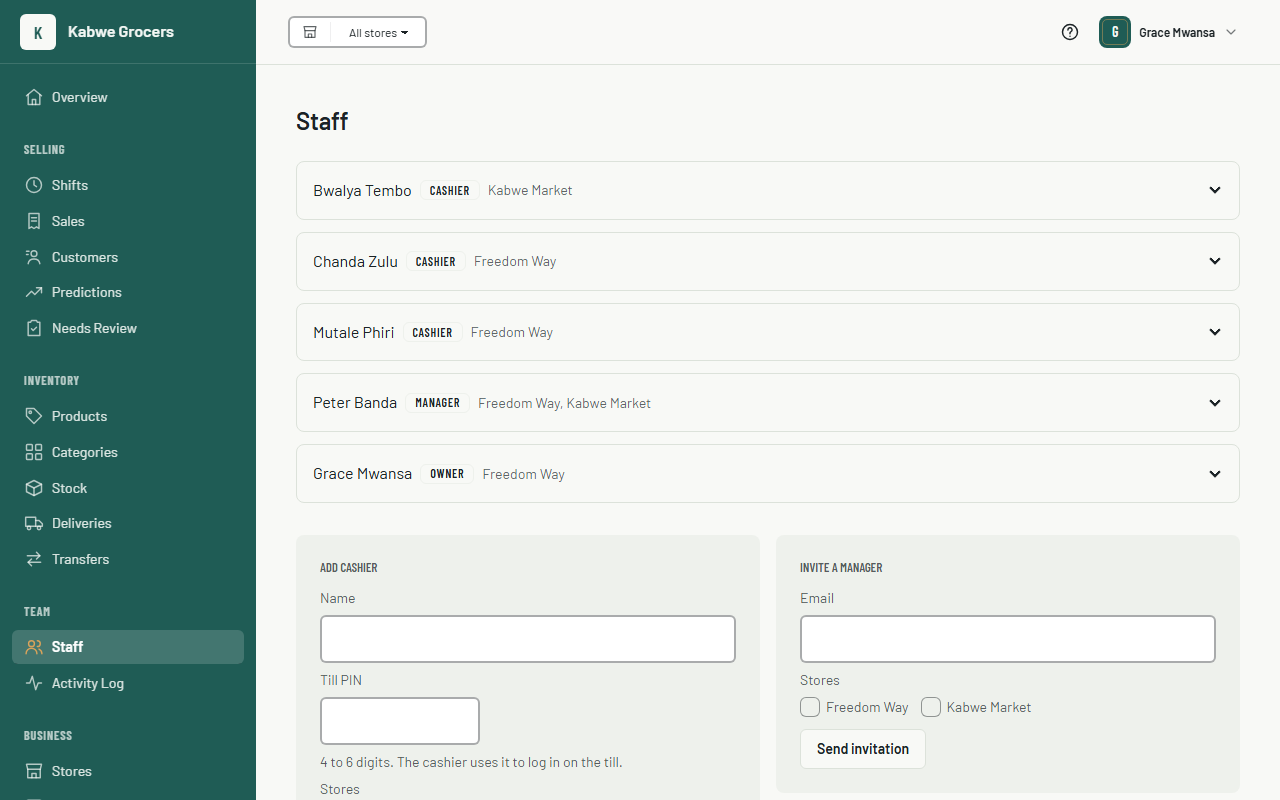
- Under Add cashier, enter their name and a till PIN of 4 to 6 digits.
- Tick the stores they work in, then choose Add cashier. Tills in those stores pick them up at the next sync.
Invite a manager (owners only)
- Under Invite a manager, enter their email and tick their stores.
- Choose Send invitation. They get an email with a link that works for 7 days.
- If they're new, they choose a name and password. If they already have an account, they accept and log in as usual.
Change someone's details
- Choose the person's name to open their details.
- Change their name, stores or Active setting, or type a new till PIN. Leave the PIN blank to keep the old one.
- Choose Save.
Set your own till PIN
Owners and managers open their own row and type a new till PIN, so they can log in on the till too.
Common questions
It says "PIN must be 4 to 6 digits".
Use numbers only, such as 4821.
Someone left. How do I stop them selling?
Untick Active and save. They can no longer log in on any till.
The invitation link says it has expired.
Links work once and for 7 days. Send a new invitation from the staff page.
A manager can't see a cashier.
Managers only see staff in the stores assigned to them. The owner can add the store to the manager.