Recording deliveries
Add stock you receive from a supplier, with quantities and cost.
- For owners
- For managers
On this page
What it's for
When a supplier delivers, record it so the store's stock goes up. The tills see the new levels at their next sync. Each delivery keeps the supplier, the invoice number and what each line cost, so you can check it against the invoice later.
Before you start
You need:
- your dashboard login (owner, or a manager of that store)
- the supplier's invoice or delivery note
- the products already in your product list, with stock tracking on
Steps
- In the dashboard, choose Deliveries, then Record a delivery.
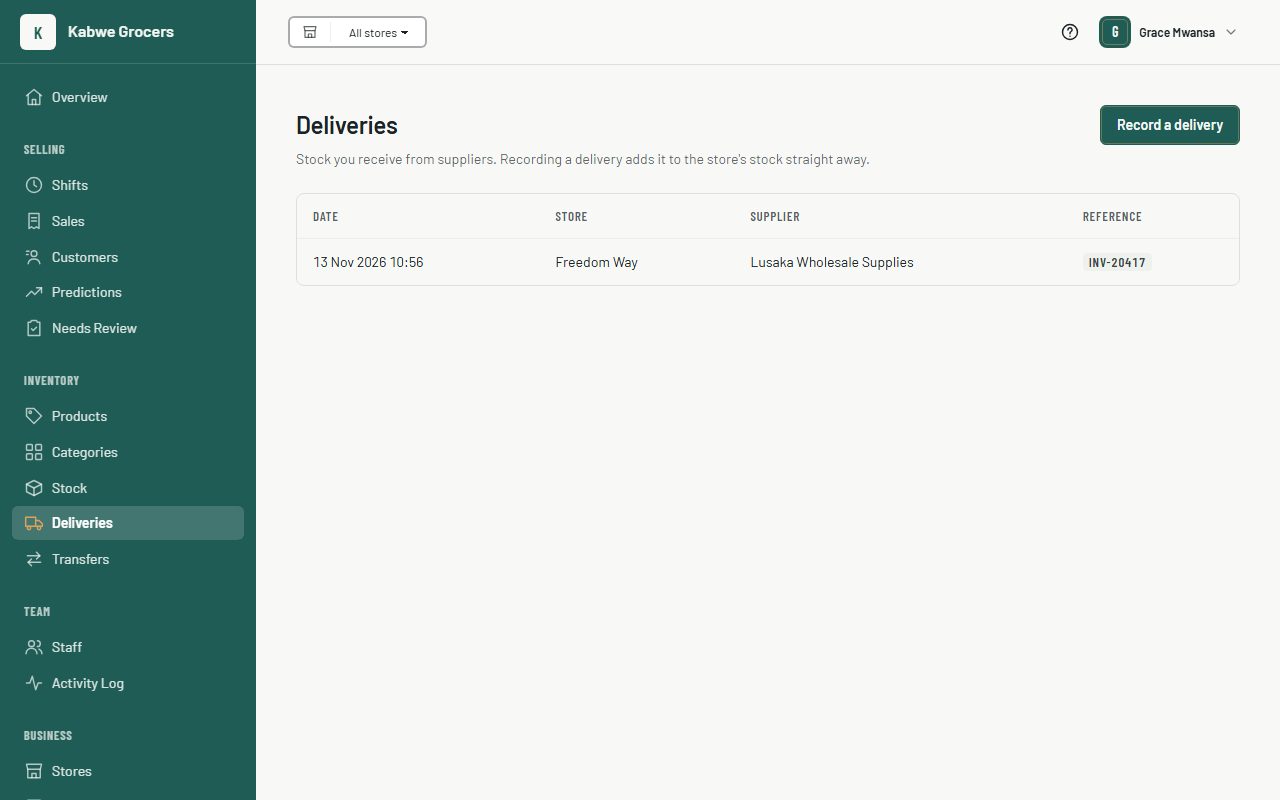
- Choose the store, then type the supplier and, if you have one, the invoice or delivery note number.
- On each line, choose a product and type the quantity. Add the line cost from the invoice if you want to keep it. Choose Add line if you need more rows.
- For products with a pack size, type the number of packs. Delivering 12 bottles of a 750 ml gin adds 9,000 ml.
- Decimals are fine: 4.5 crates.
- Choose Add to stock. The delivery page shows what was added and the total cost.
Common questions
I typed the wrong quantity.
A delivery can't be edited, so the record stays as it was received. Go to Stock and use Adjust with the reason Correction to put the level right.
A product isn't in the list.
Only products that track their own stock are listed. Products such as a gin tot use up another product's stock: deliver the bottle instead.
Does a delivery change the selling price?
No. Prices are set on the product.