Stock counts and adjustments
Count what's on the shelf, and record breakage, expiry and other changes.
- For owners
- For managers
On this page
What it's for
Sales, deliveries and transfers keep stock up to date automatically. Some things only you know about, though: a broken bottle, an expired pack, stock that went missing or turned up. Use an adjustment for one change like that. Use a count to set the levels to what you actually counted on the shelf. Each one is kept with who did it, when, and why.
Before you start
You need:
- your dashboard login (owner, or a manager of that store)
- for a count: every till at the store synced (the till's sync badge shows nothing waiting)
Steps
To adjust one product:
- In the dashboard, choose Stock, then pick the store at the top.
- Choose Adjust stock.
- Choose the product and type the change. Use a minus sign to remove stock: -2 takes two away. For products with a pack size, type packs.
- Choose a reason: Damaged, Expired, Theft or loss, Found, Correction or Other. Other needs a note.
- Choose Save adjustment.
To count stock:
- On Stock, choose Count stock.
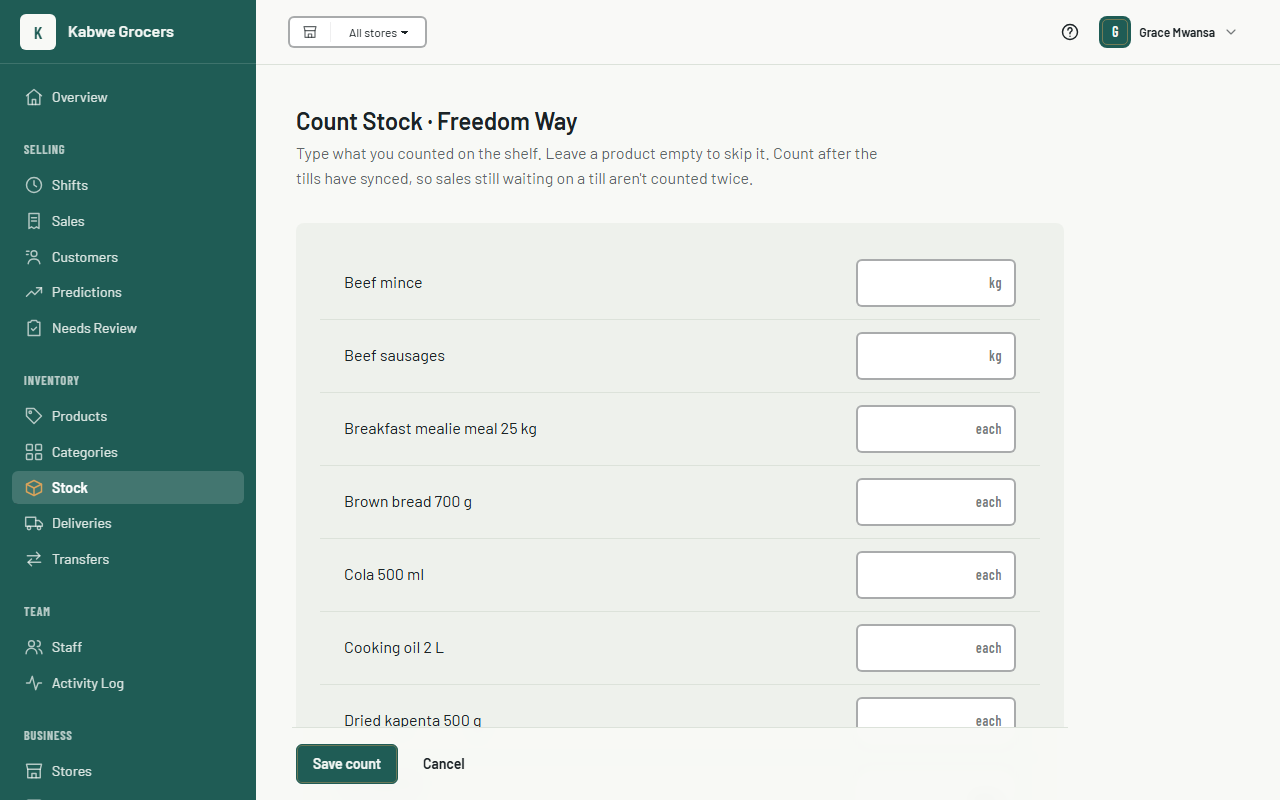
- Type what you counted for each product you checked. Leave the rest empty; they're skipped. For bottles and crates, type packs: 4.2 bottles is 4 full bottles and part of one.
- Choose Save count. Each counted product's level becomes what you counted.
Common questions
Why should the tills be synced before a count?
A sale still waiting on a till is taken off the stock when it syncs. If it was sold before you counted, it gets taken off again, and the level ends up too low.
I counted the wrong number.
Count that product again with the right number, or adjust it with the reason Correction.
Where do I see who changed stock?
Owners can see every adjustment and count in the Activity Log.