Customers
Keep the customers you invoice, with their TPIN and contact details, and pick them at the till.
- For owners
- For managers
- For cashiers
On this page
What it's for
Some customers need their details on what they buy: their name, TPIN, address, phone and email. A business buying from you needs this on a tax invoice, and ZRA Smart Invoice asks for it. Keep these customers in one list, and the cashier picks one at the till in a couple of taps. The details then print on the receipt and the invoice. See Invoices.
Most sales don't need a customer. You can leave it optional, or make it required for every sale.
Before you start
- Owners and managers manage customers on the dashboard and in the admin app. Cashiers can add a customer at the till while selling.
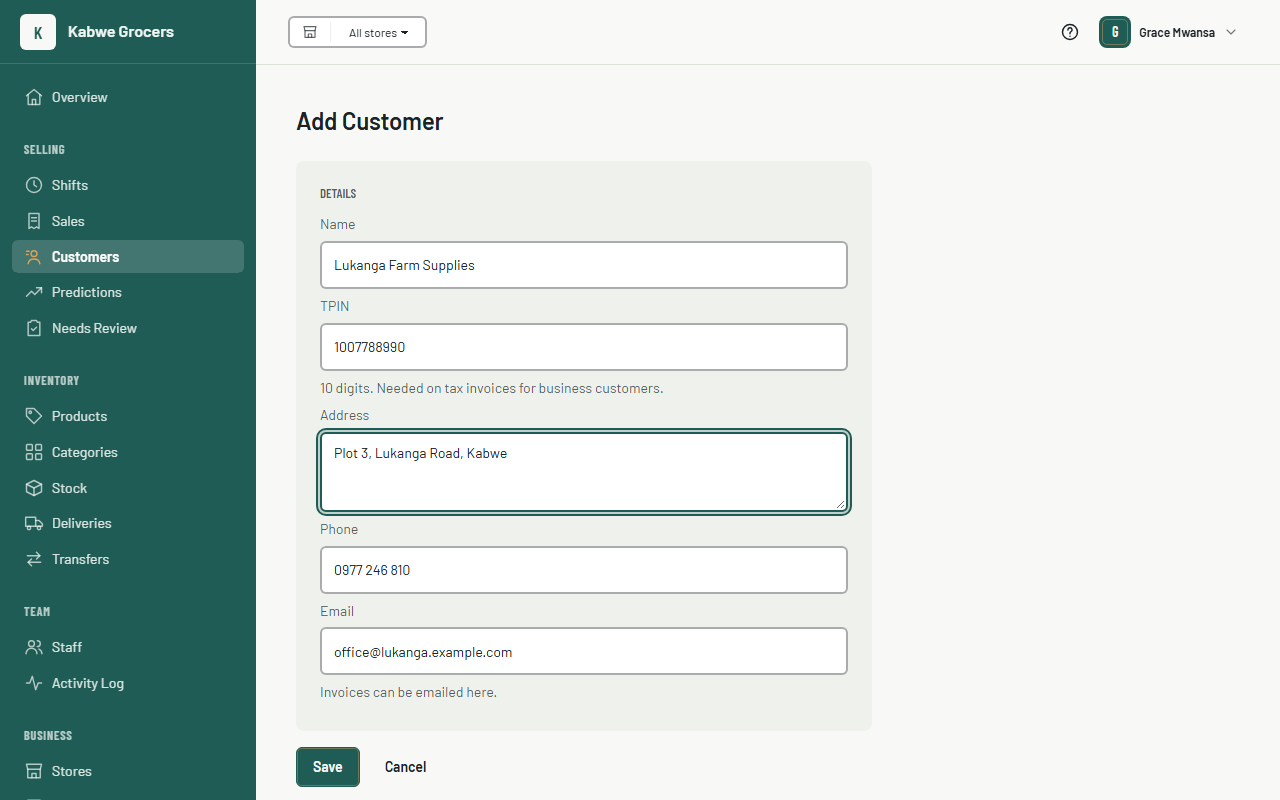
- A TPIN has 10 digits. Only the name is needed; add the rest when you have it.
Steps
On the dashboard
- Choose Customers (under Selling), then Add customer.
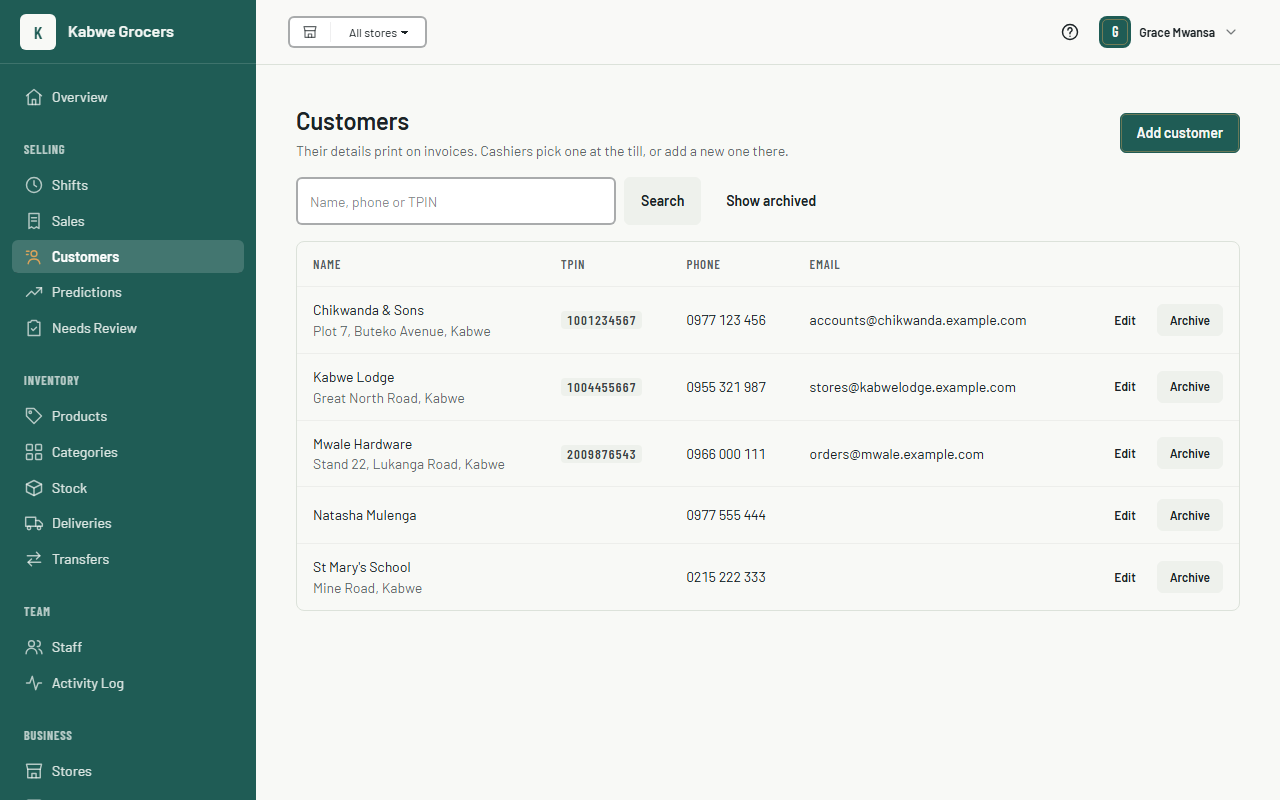
- Enter the name and, when you have them, the TPIN, address, phone and email. Choose Save.
- To change a customer, choose their name, edit and Save. Invoices already made keep the details as they were on the day.
- To stop a customer showing on the tills, choose Archive. Choose Show archived to find them again, and Unarchive to bring them back.
- To find someone, type part of their name, or the start of their phone number or TPIN, and choose Search.
In the admin app
- Open Selling, then Customers. Search by name, phone or TPIN.
- Choose New Customer, or tap a customer to edit them. On a tablet the form opens beside the list.
- To archive a customer, open them and choose Archive. Turn on Archived above the list to find them again, then Unarchive.
At the till
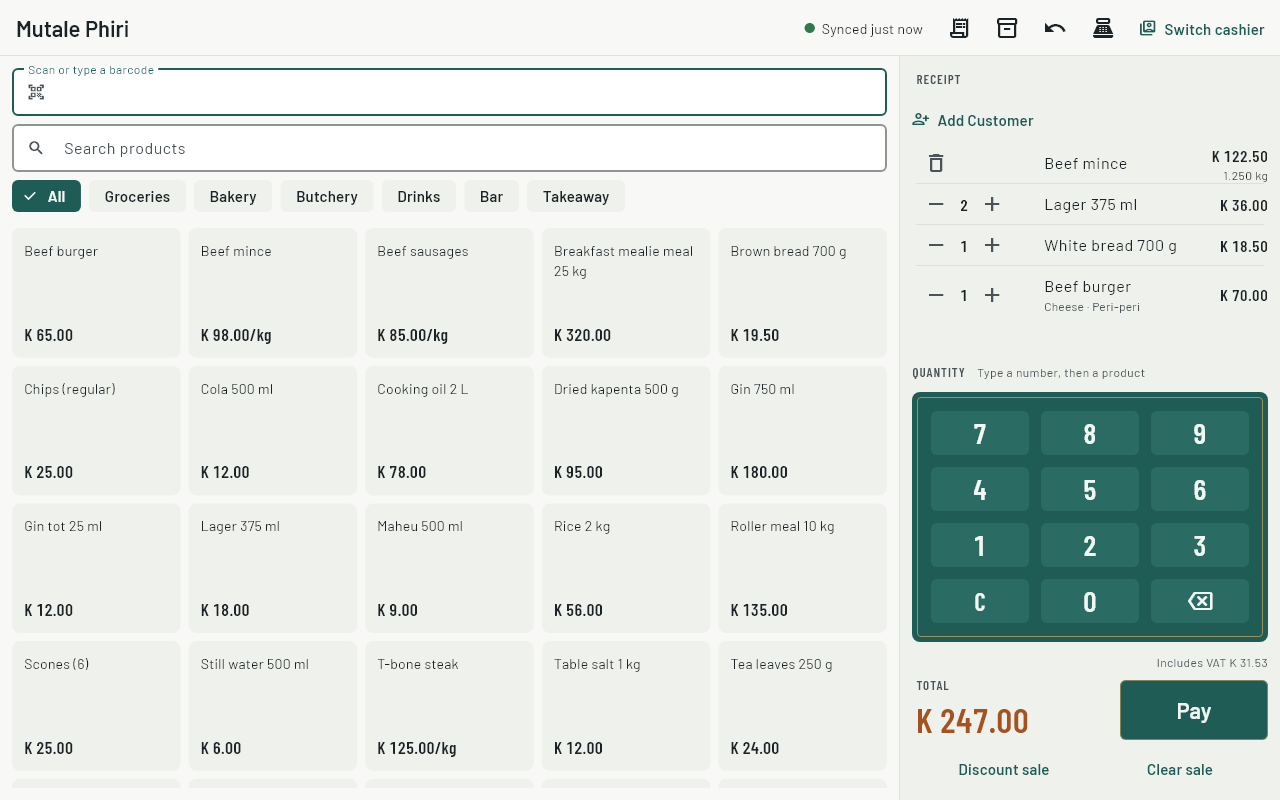
- On the sell screen, choose Add Customer.
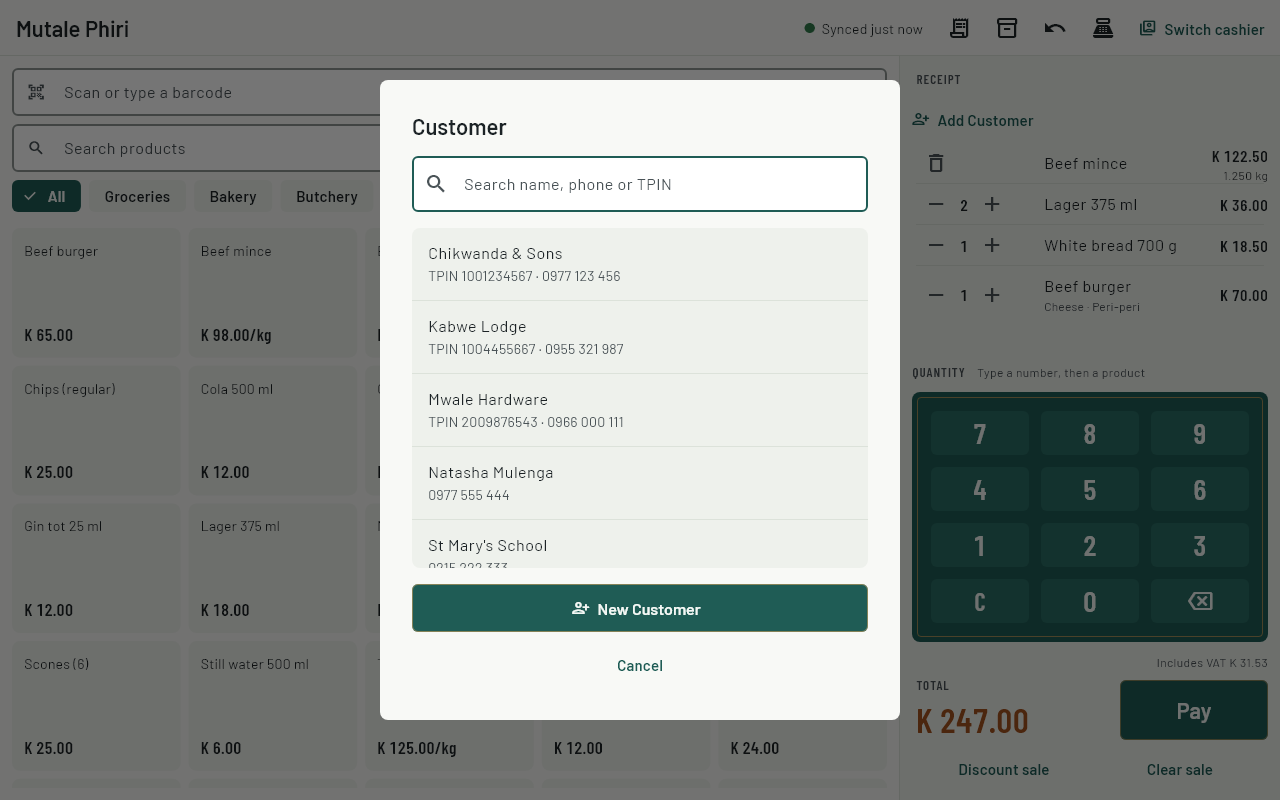
- Type part of the name, phone or TPIN and tap the customer. If they aren't there, choose New Customer, fill in what you have and save. This works without the internet.
- The customer's name shows above the cart. Tap the cross to remove them. Then sell and take payment as usual.
Making a customer required
- On the dashboard, choose Settings.
- Under Customers on Sales, choose Required and save. Tills then ask for a customer before taking payment. Choose Optional to go back.
Common questions
A customer I added at the till isn't on the other till.
A new customer reaches the other tills after the first till has synced, usually within a minute when both are online.
Can a cashier change a customer's details?
No. Cashiers add new customers; owners and managers change them on the dashboard or in the admin app. This stops two tills changing the same customer differently while offline.
I picked the wrong customer on a sale.
Before payment, tap the cross and pick again. After payment the sale can't be changed: refund it and sell again with the right customer. See Refunds.
Two customers have the same TPIN.
That's allowed. Branches of one company often share a TPIN.