Managing stores
Add stores, edit their receipt details and archive stores you no longer run.
- For owners
On this page
What it's for
Each store has its own stock, tills and sales. Your plan sets how many active stores you can run; tills per store are unlimited.
Before you start
Only owners can add, edit or archive stores. Managers see the stores they're assigned to.
Steps
- In the dashboard, choose Stores. The top of the page shows how many stores your plan allows.
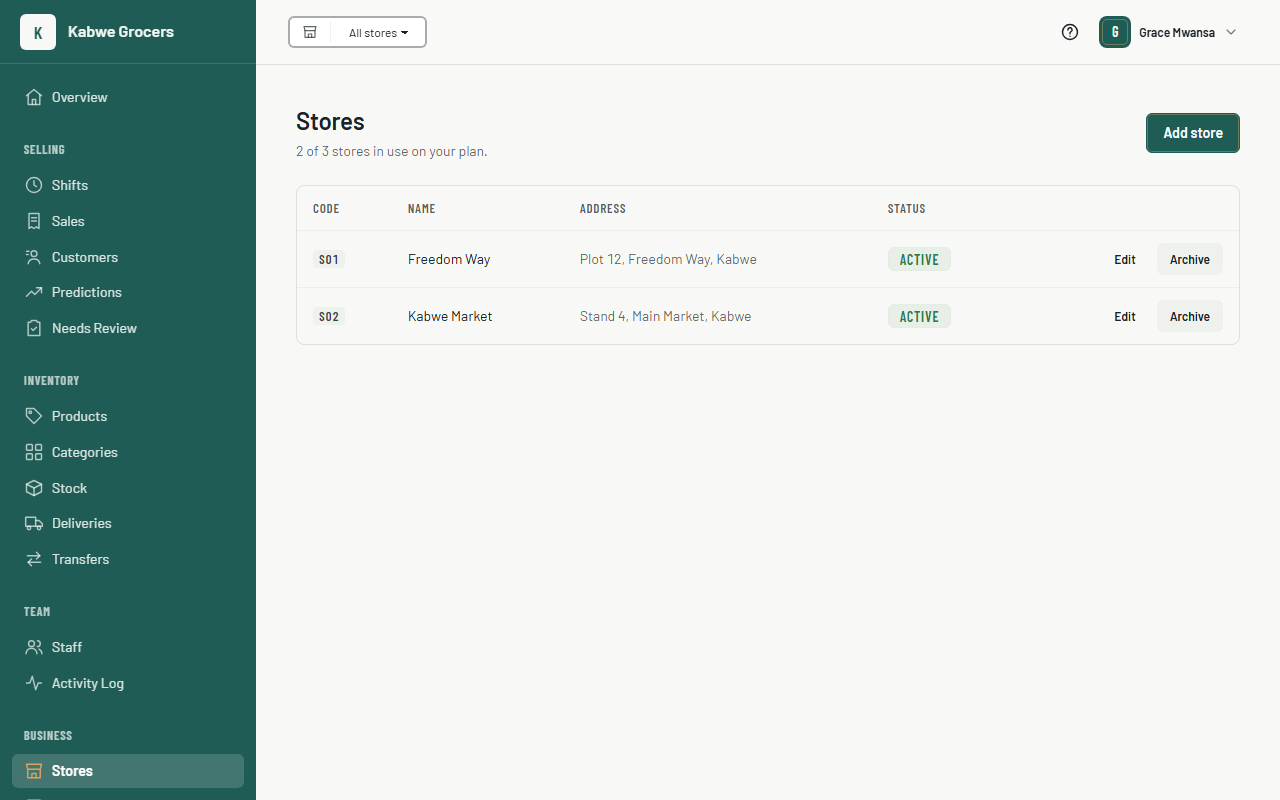
- Choose Add store, enter the store name, an optional address and receipt header, then choose Save. Each store gets a short code such as S02, which appears on its receipts.
- To change a store's details, choose Edit next to it.
- To stop using a store, choose Archive. Its sales history stays, but it no longer counts towards your plan.
- To bring an archived store back, choose Unarchive.
- Use the store picker at the top of the dashboard to look at one store, or All stores at once.
Stock
Choose Stock to see what each store has. Pick the store at the top. Items at or below their low stock alert show Low, and counts that went below zero show Below zero. Products with a pack size show both, for example 4.2 packs (3,150 ml).
Tills
Choose Tills to see every till in your stores, when each last synced, and whether it's active. Choose Revoke on a lost or replaced till; it's signed out at its next sync and must be set up again. Managers can revoke tills in their own stores.
Common questions
It says "Your plan allows 1 store".
You've reached your plan's limit. Archive a store you don't use, or upgrade your plan.
What goes in the receipt header?
Anything printed above every receipt, such as your TPIN, phone number or opening hours.
Can I delete a store?
No. Archive it instead, so its sales and stock history stay in your reports.